Test Conversion Tracking Like a Real Buyer

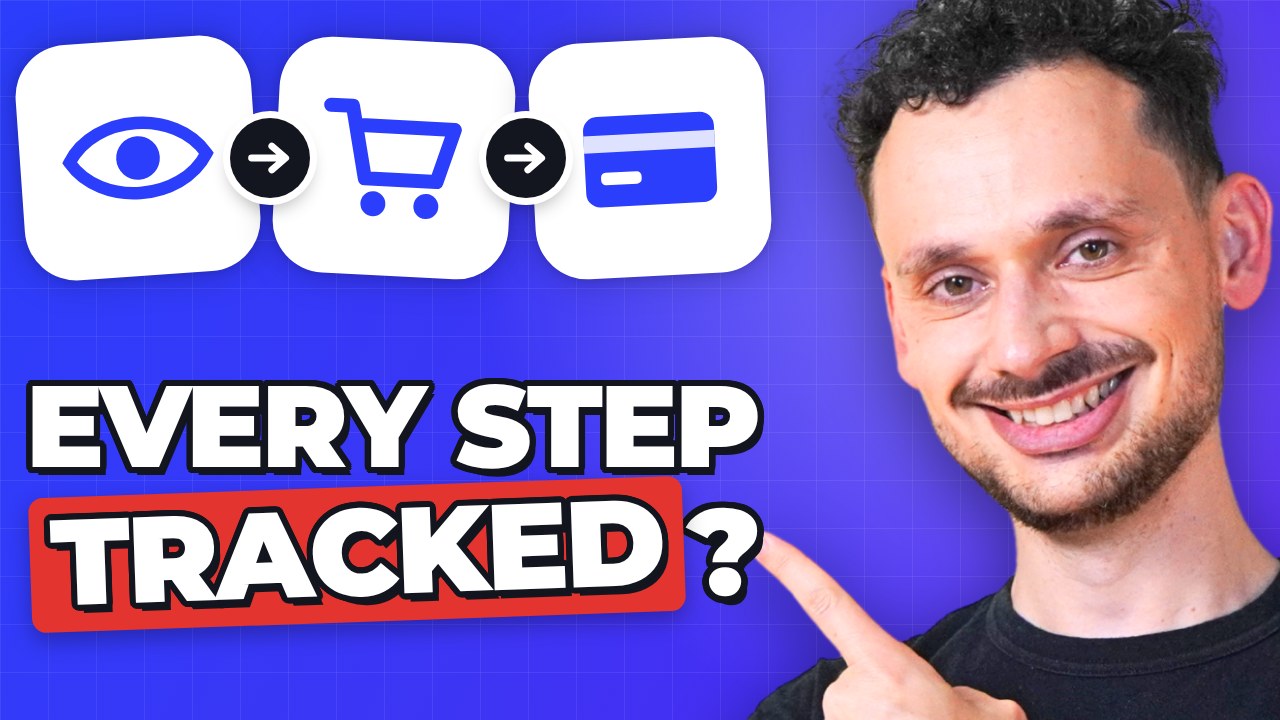
Broken conversion tracking is the first thing I find in most accounts I audit. Stores keep selling and tags keep loading. Meanwhile Google Ads bids on numbers that are missing or doubled.
So I turned my manual check into a free Chrome extension. It's called Conversion Tracking Checker. You shop a store like a real buyer. It tells you in plain words what got tracked. To show it works on a real site, I ran it live on Zara.
01Why Tracking Breaks Without a Warning
Conversion tracking is the number one problem for many ecommerce stores. It also got much more complex over the years.
A Google Ads conversion only counts when a chain of small handoffs all work. Someone clicks your ad and a click ID lands in the URL. Your Google tag stores it in a cookie. Your cookie banner sends a consent signal. Then the purchase tag fires with value, currency and order ID.
One weak link breaks it. The sale either disappears from your account or shows up wrong. And nothing turns red. Your shop still takes orders, so nobody looks.
I've seen how far this goes. One store I audited had spent about $4,000 with zero sales attributed. Over the same stretch it made more than $200,000 in tracked revenue.
Smart Bidding learns from whatever sits in your conversions column. A purchase sent without a value makes your ROAS wrong. Then bidding chases the wrong number. I wrote more on that in why Smart Bidding fails.
Checking it yourself was the hard part. Existing Chrome extensions show raw events and parameters. If you're not a developer, it reads like gibberish. That gap is why I built this tool.
02Install It and Pick a Mode
Setup is short. You need Chrome 116 or newer on a desktop.
Install the free extension. Then pin it so the icon sits next to your address bar.
A side panel opens on the right. The test runs inside it while you browse.
Site access starts only after you allow it. You can remove that access any time in Chrome's extension settings.
Look at the top right corner of the panel. You'll see two modes there.
Simple mode is built for business owners. Each problem comes in plain words, with what to ask your developer. Pro mode is for developers and marketing managers who want every detail behind the score.
Simple is the one I like most, to be honest. Most store owners don't need hit level detail. They need to know what's broken and who should fix it. You can switch modes at any time and the panel remembers your choice.
03What a Live Test on Zara Showed
I used Zara for the demo. Then I shopped it the way a buyer would.
From the homepage I scrolled down and opened a product. The moment I landed on the product page, the panel ticked that step off. Product views are the second step of the sales funnel, so this one matters.
Then something showed up. Analytics counted that page view twice. Google Ads, Meta and TikTok all looked fine on the same page.
Next I picked a size and added the item to the cart. The cart page opened and the cart event loaded fine. From the cart I started checkout and reached the checkout page.
I stopped there. It's not my store, so I wasn't going to place an order. That's also why the purchase row stays empty.
I can't see Zara's setup from outside, so I won't guess their cause. On most stores it means analytics is installed twice. A theme integration plus a Tag Manager tag is the usual pair. Keep one install per platform and run the test again.
You can export results at any point. The Download report button sits at the bottom of the panel.
Measurement is the first thing I check on any account, before structure or bids. Send me yours and I'll tell you what it can actually see.
04Test the Purchase Step Properly
Purchase is the step that matters most. You want every sale tracked in Shopify or your store platform. You also want it tracked inside every ad platform you pay.
That second part is how the algorithms learn. Google and Meta both optimize on the data you send back. More accurate data gets you better results.
So don't stop at purchase events. Send product views, cart and checkout too. Each one gives bidding more signal to work with.
Here's how to test purchase on your own store. Create a 100% discount coupon and place an order with it. You get a full purchase without moving money. In my Shopify tracking setup guide I describe the other route. Place a real order, then refund it.
Those numbers come from the extension's own page, which was checked against its code. The five steps hold even when payment detours through another domain.
At purchase, these are the problems I'd look for first.
Google Ads then counts a default value or none at all. Your revenue and ROAS go wrong. A page reload can also count one order twice.
If the Google tag doesn't run on the landing page, the gclid is lost. A sale a few pages later can't be matched to the ad. Press Test ad click in the extension to check this.
Google then gets hits with no consent signal. EU traffic models poorly. Load the consent default first.
Some checkouts put the email in the URL. Every pixel on that page then sends it to Google and Meta in plain text. That breaks both platforms' policies.
Enhanced conversions get their own check too. The extension confirms they're sent, hashed and error free.
05How It Compares to Tag Assistant
Google Tag Assistant and Meta Pixel Helper are good tools. I've recommended Tag Assistant in other posts. Each one is built for a single platform though.
| Tool | Covers | Best for |
|---|---|---|
| Conversion Tracking Checker | Google Ads, GA4, Meta and 8 more | One full test purchase across every pixel, scored out of 100 |
| Google Tag Assistant | Google tags only | Developers debugging Google tags and GTM event by event |
| Meta Pixel Helper | Meta pixel only | Seeing which Meta pixel events fire on a page |
Tag Assistant can show that Tag Manager fired a Meta tag. It can't show what Meta actually received. One test covers every platform. You see how Google and Meta each handled the same purchase.
I looked at what's on the market before building this. Nothing came close for a store owner who just wants an answer. That's my opinion, and I'm biased because I built it.
Privacy matters here too. The extension only watches tracking. It runs in your browser with no servers, no analytics and no account. Nothing goes to me.
One more thing. A clean test doesn't mean Google Ads and Shopify will match. Some gap is normal. My post on the Shopify and Google Ads reporting gap covers what to expect.
06Send the Fix List to Your Developer
Finding the problem is half the job. Most store owners won't fix a tag themselves, and they shouldn't have to.
So the panel has a Send to developer button. It copies a clean fix list you can paste into an email or a ticket. You can also download an HTML report. It holds the score and a fix note per problem. Email addresses are hidden automatically before anything gets shared.
Your developer can open Pro mode for the detail. It shows your Google Tag Manager container IDs and the Google Ads tag. Consent Mode signals are there too. Its tabs are Fixes, Journey, Tags, Hits and dataLayer. Together they show every step in order.
- Run the full test to a purchase
- Test again after any theme or checkout change
- Keep one install per platform
- Send the fix list, not screenshots
- Trust a tag because it loads
- Cut budget before you check tracking
Changed your checkout recently? Read what to do when purchase tracking breaks after a checkout change. Then run this test.
- 1Install the extension and pin it.
- 2Create a 100% discount coupon on your store.
- 3Shop from homepage to purchase like a buyer.
- 4Read the score and the fix list in Simple mode.
- 5Send the list to your developer, then test again once it's fixed.
Set it up properly once. Then you can stop worrying about it and focus on scaling.
The extension shows what your store sends. My audit shows what Google Ads does with it. Send me the account and I'll walk you through what I find.
Frequently asked questions
Is the Conversion Tracking Checker free?
Yes. It's free on the Chrome Web Store and needs no sign-up. You install it, pin it and start a test on any store you open.
Do I have to place a real order to test purchase tracking?
For the purchase step, yes. Nothing else proves a sale reaches your ad platforms. Create a 100% discount coupon and order with it. Or place a real order and refund it.
Does the extension send my store data anywhere?
No. Every check runs inside your browser. It sends nothing to Online Labs, and the test clears when you close the tab. It also never blocks or edits a request.
Which ad platforms can one test check?
Eleven in one pass. Google Ads, GA4, Meta, TikTok, Microsoft Ads, Pinterest, Reddit, Snap and Floodlight get purchase checks. LinkedIn and X get live checks.
Why would GA4 count one page view twice?
Usually because analytics is installed twice. A theme integration plus a Tag Manager tag is a common pair. Keep one install per platform, then run the test again.
Can I run it on a store I don't own?
Yes, it works on any store you open in Chrome. I ran my demo on Zara. Just don't place orders on stores that aren't yours.
Every article is based on campaigns I've personally managed across Shopify stores, jewelry brands, and DTC ecommerce. No contributed posts. If I haven't tested it, I don't write it.
About DanKeep reading
More on Conversion Tracking.
Swipe for all 3
Something in your account not making sense?
I offer a free Google Ads audit for ecommerce stores spending $5,000/mo or more. You get a written report with a prioritized fix list in 3 to 5 days.
You'll hear directly from Dan within one business day.